Manage your communication preferences
Parent portal Parents
Choose which emails and text messages you receive from the school
With the new parent portal you have full control over how many emails and text messages the school sends you. If you feel you’re being bombarded, you can choose exactly which categories of communication you want to receive — while emergency and other essential messages always get through.
On this page
You’ll never miss anything important
Two things are worth knowing before you change anything:
- Essential messages can’t be switched off. Categories such as school closures, delays, early dismissal and emergency alerts are always sent to you, whatever else you turn off.
- You can still read everything that was sent. Even if you switch off some or all of the optional categories, a full record of every email the school has sent you is kept in the Messages area of the parent portal.

The red arrow shows the Messages link in the top navigation bar.
If you’ve turned a category off and later want to catch up on what you’ve missed, Messages is the place to look.
1. Open the parent portal
Sign in to the portal for your child’s school:
| Your child’s school | Link |
|---|---|
| Either school (works for both) | https://parents.rgsg.co.uk |
| Senior School (RGS) | https://portals.veracross.eu/rgsg/rgs-parents |
| RGS Prep | https://portals.veracross.eu/rgsg/prep-parents |
If you have children at both schools, the two portals are separate — set your preferences in each one.
If you need help signing in, see Access the parent portal.
2. Go to your communication preferences
In the navigation bar at the top of the page, click My Information, then choose Change Communication Preferences.
3. Turn categories on and off
You’ll see the My Channel Settings page, listing the types of communication the school sends, grouped into sections such as School News & Announcements, Current Parents, Current Students, Admissions and General. Click the small arrow next to a section name to expand it.
Each category has its own Email and SMS tick box, so you can, for example, keep receiving something by email but stop the text message.
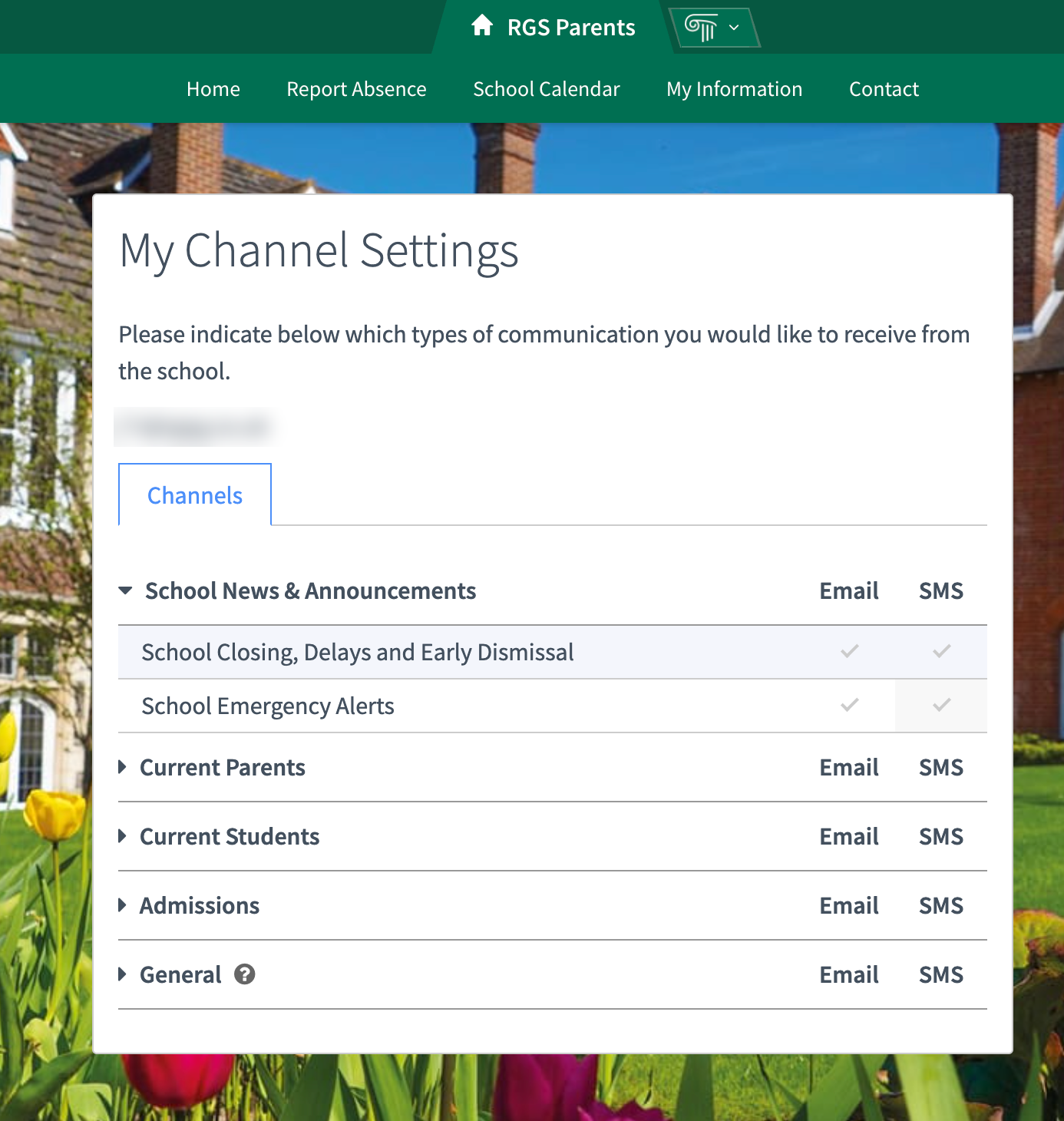
Expand a section, then tick or untick Email and SMS for each category.
Tick the categories you want to receive and untick the ones you don’t. Greyed-out ticks — such as School Closing, Delays and Early Dismissal and School Emergency Alerts — are the essential categories you can’t turn off.
Changing your preferences from an email
You don’t have to sign in to the portal every time. Every communication the school sends has an unsubscribe link at the bottom, which takes you straight to the same preferences page.
Need help? Contact the IT Helpdesk.